コード例
サイドパネル
ここで作成するUIは下記のものです。 実際に動くデモもご覧ください
考えるポイント
- サーバから非同期でUserProfile情報をもらいます
- サーバからデータをもらうのでTurboを使います
- Turboを使う場合、便利機能が多いのはTurbo Framesで、細かい操作をしたいときはTurbo Streamsです。特に複数の要素を独立に更新したい場合はTurbo Streamsを使います。今回は1つの要素だけを更新すれば良いので、Turbo Framesを選択します
- Turboを使うことが決定しましたので、数の青線のところを辿る感じになります
- イベント処理にStimulusが必要かどうかを考えます
- 今回は表の行をクリック(
clickイベントに応答)してUserProfileを表示します。aタグとTurbo Framesの組み合わせであれば自動的にイベントハンドリングをしてくれますので、これを採用します - もし他のイベントに応答したい場合(例えば
hover)、あるいはaタグが使えない場合(例えばtrタグにイベントを繋げたい)はStimulusを使いますが、今回はその必要はありません
- 今回は表の行をクリック(
- Turboがページを読み込む前後でやることが特にないので、それ以外でStimulusを使う用途もありません
- 例えばモーダルを出すのであれば、モーダルの表示・非表示を切り替えるなどの処理が発生しますが、今回はそれもないのでStimulusを使う必要がありません
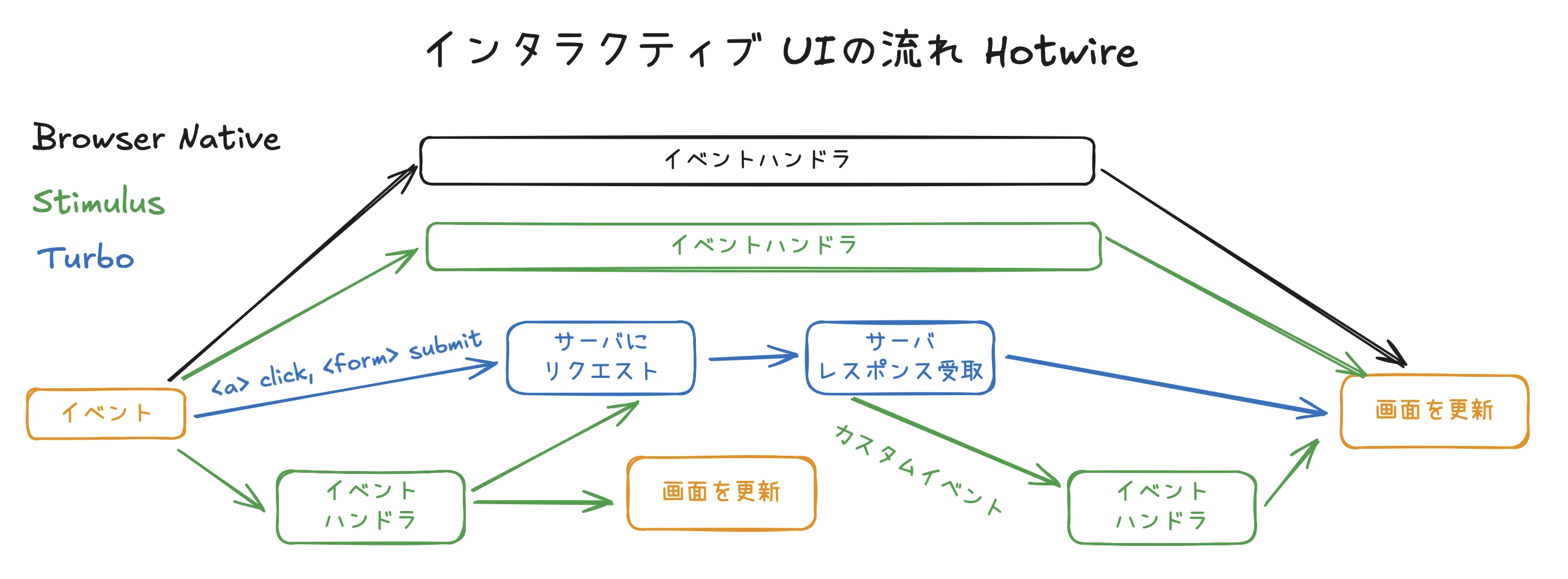
なお、比較対象としてjQueryやReactを使った例も紹介しますが、詳しくは解説しません。Hotwire, jQuery, Reactのバージョン(variant)を切り替える方法はfooをご覧ください。
コード
1. 表示するサイドパネルの中身を用意します
app/views/users/user_profiles/show.html+hotwire.erb
<turbo-frame id="user-profile">
  <%# ... %>
  <%# 表示する内容はこの中 %>
  <%# ... %>
</turbo-frame>
- Hotwireで開発する時の順番として、サーバが返すHTMLを最初に作るのはよくやります。まずここから開始するのが良いでしょう
- この断片は
id="user-profile"の<turbo-frame>に挿入されますので、同じidの<turbo-frame>で囲みます
app/controllers/users/user_profiles_controller.rb
class Users::UserProfilesController < ApplicationController
  # ...

  # GET /user/1/user_profile or /user/1/user_profile.json
  def show
    @user_profile = @user.user_profile

    render layout: false # Hotwireでは不要。jQuery版でのみ必要
  end

  # ...
end
- サイドパネルのHTMLを返すエンドポイントです。ごく普通のものです
2. サイドパネルが挿入される箇所の準備
app/views/users/index.html+hotwire.erb
  <turbo-frame class="border rounded shadow" id="user-profile">
  </turbo-frame>
<turbo-frame>のid属性で、サーバからのレスポンスが挿入される箇所を指定します
3. 表の行をクリックした時のイベントハンドラを用意
app/views/users/_user.html+hotwire.erb
<tr>
  <td class="relative">
    <%= link_to user_user_profile_path(user), data: {turbo_frame: "user-profile"} do %>
      <span class="absolute inset-0"></span>
      <%= user.user_profile.name %>
    <% end %>
  </td>
  <td class="relative">
    <%= link_to user_user_profile_path(user), data: {turbo_frame: "user-profile"} do %>
      <span class="absolute inset-0"></span>
      <%= user.email %>
    <% end %>
  </td>
</tr>
- Turboでサーバと通信をする場合、イベントを受け取るのはなるべく
<a>や<form>を使います data: {turbo_frame: "user-profile"}はレンダリングされるとdata-turbo-frame="user-profile"になりますが、これはTurboでサーバからのレスポンスを受け取った時に、「2. サイドパネルが挿入される箇所」の<turbo-frame="user-panel">に挿入してくださいという指示になります- HTML
<table>の中で行を丸ごと囲む<a>タグは作れませんので、<a>タグを2列分用意したり、span absolute insetのパターンを使用しています